.png?width=161&height=72&name=Logo%20light%20tr%20(1).png)
Use Find by Location: No-Go Zone to search for a predefined No-Go Zone and display it on the map. This helps you identify units that are within or near the selected No-Go Zone.
How to find a No-Go Zone
-
Click Track to open the Tracking page.
-
In the top-right corner of the map, click Find.
-
Select Location.
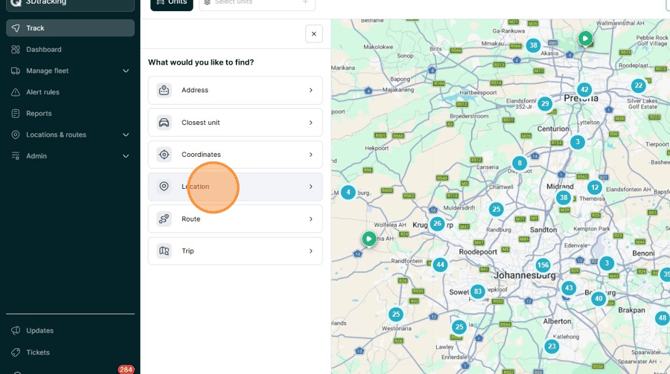
- Select No-Go Zone.
- Enter the name of the predefined No-Go Zone in the search bar.
- Select the location group containing the No-Go Zone you are looking for.
- Select the required No-Go Zone from the search results.
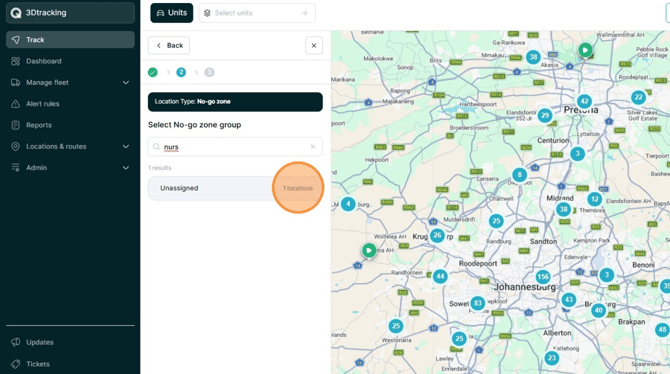
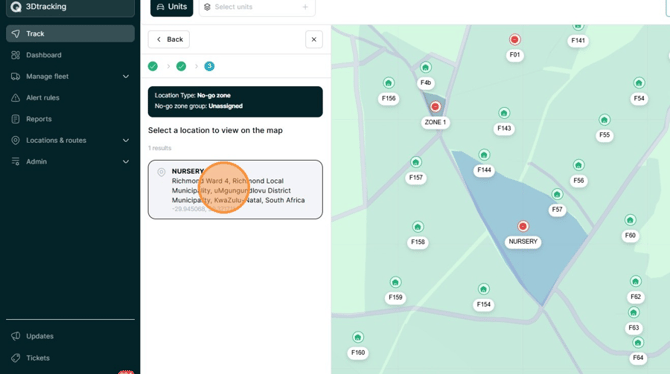
- The selected No-Go Zone is displayed on the map.
- Use the map to identify units that are within or near the selected area.
- Select a unit on the map to view more information about it.
Tip: Only predefined No-Go Zones that you have access to will appear in the search results.