.png?width=161&height=72&name=Logo%20light%20tr%20(1).png)
You can open the Secondary Panel in different ways:
- Select a unit card from the unit list.
- Select a telemetry or input/output (I/O) item when available.
- Select other supported unit information that opens additional details.
The panel allows you to continue viewing the unit's position, routes, and surrounding locations.
The information available in the Secondary Panel is organized into tabs. The tabs you see may depend on the unit configuration, connected hardware, and available data
Inspect
Inspect provides a more detailed view of a selected trip. From the Trips tab, select a trip and then select Inspect to open the trip analysis workspace.
Trip Inspect allows you to:
- Replay the trip and review movement on the map.
- Explore trip coordinates, timestamps, locations, and movement status.
- Review telemetry and sensor data using timelines and charts.
- View trip details such as distance, fuel usage, and driver information.
- Investigate driver behavior events such as harsh braking, acceleration, cornering, and speeding.
- Review related video clips and images where supported.
Back to Unit Card from the Secondary Panel
The Back button in the Secondary Panel lets you return to the previous view without leaving the Track page.
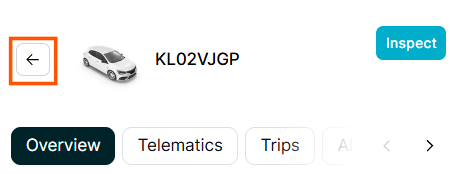
Use Back to move up one level in the Secondary Panel while keeping the selected unit, map position, and Track-page context unchanged.
Overview Tab
The Overview tab provides a summary of the selected unit.
Depending on the available data, you can view information such as:
- Latest trip details
- Current or last known location
- Recent activity
- Active inputs and sensors
Use this tab when you need a quick overview before investigating the unit in more detail.
Telematics Tab
The Telematics tab provides more detailed information from the unit and its connected sensors. It is useful when checking device behavior or investigating telemetry.
You can view:
- Inputs and outputs
- I/O history
- Map locations
- Diagnostic Trouble Codes (DTCs)
- Sensor information
Trip Tab
The Trips tab lets you review recent trips and route history for the selected unit.
Available time filters include Today, 24 hours, 12 hours, 8 hours, 4 hours, 2 hours, and 1 hour.
Select a trip to view information such as trip ID, start time, end time, and distance travelled.
The selected trip route is displayed on the map.
Alerts Tab
The Alerts tab displays alerts triggered for the selected unit within the selected timeframe.
Select an alert to review its details and view the location where the alert was triggered on the map.
Driver Tab
The Driver tab provides information about the driver associated with the selected unit.
Media Tab
The Media tab is available when the selected unit has supported video or camera hardware.
Depending on the hardware and configuration, you may be able to view flagged video clips, requested footage, snapshot images, and related location information.
Tip: Keep the map in view while using the Secondary Panel. When reviewing trips, alerts, or telemetry, selecting an item may highlight its related location or route on the map, helping you understand what happened and where.