.png?width=161&height=72&name=Logo%20light%20tr%20(1).png)
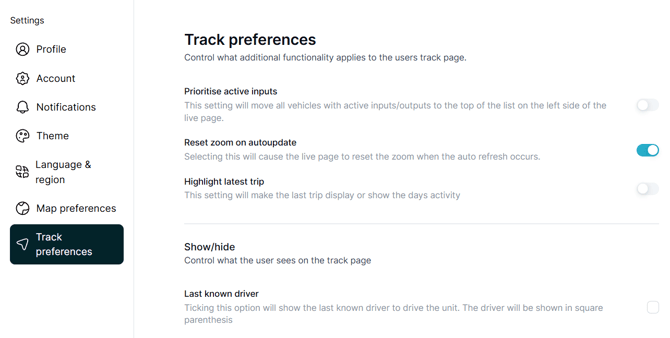
Track Preferences allow you to personalize the information displayed on the Tracking page.
You can choose how location information is shown, which details appear for your units, and how the unit list and map behave while you are tracking.
Tip: Choose the information that is most useful for your daily work. Hiding information you do not regularly use can make unit information easier to read and help you focus on what is important.
To access these settings, go to Settings > Track Preferences.
|
Setting |
What it does |
|---|---|
|
Prioritize Active Inputs |
Moves units with active inputs or outputs to the top of the unit list. |
|
Reset Zoom on Auto-Update |
Resets the map zoom when the Tracking page automatically refreshes. |
|
Highlight Latest Trip |
Highlights the unit's latest trip or activity for the day. |
|
Show/Hide |
Controls which information is visible on the Tracking page. |
|
Last Known Driver |
Shows the last known driver associated with the unit. |
|
Additional Diagnostic Info |
Controls the display of additional diagnostic information in trip details. |
|
Vehicle Description |
Shows the vehicle description in the unit details, where available. |
|
Diagnostic Data |
Shows available diagnostic data in the unit details. |
|
Input/Output Status |
Shows the names of active inputs or outputs, where available. |
|
Driver Name |
Shows the assigned driver's name, where available. |
|
Last Data |
Shows the date and time when data was last received from the unit. |
|
Last GPS Time |
Shows the time of the latest GPS information received from the unit. |
|
Vehicle Location |
Shows the unit's location in the unit details. |
|
Odometer/Engine Hours |
Shows the odometer reading for vehicles/personal trackers or total engine hours for assets. |
|
Include Engine Hours/Odometer |
Shows additional engine hours or odometer information based on the unit type. |
|
Today's Activity |
Shows a summary of the unit's activity for the current day. |
|
Location Format |
Controls how locations are displayed on the Tracking page. You can select up to two main location elements. |
Tip: Choose the Track Preferences that match the information you use most often. Showing only the details you need can make the Tracking page easier to read, especially when monitoring many units.