.png?width=161&height=72&name=Logo%20light%20tr%20(1).png)
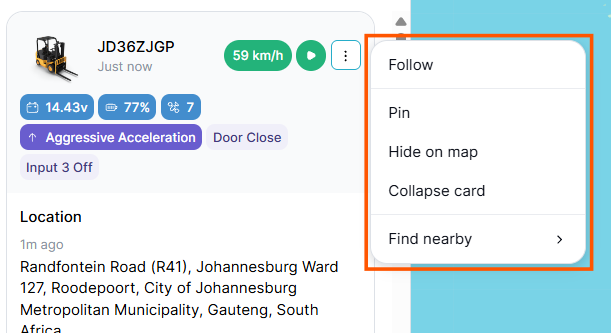
You can open the menu by clicking the three-dot icon (⋮) on the unit card. The available options apply only to the selected unit, allowing you to perform common tasks without leaving the Tracking page.
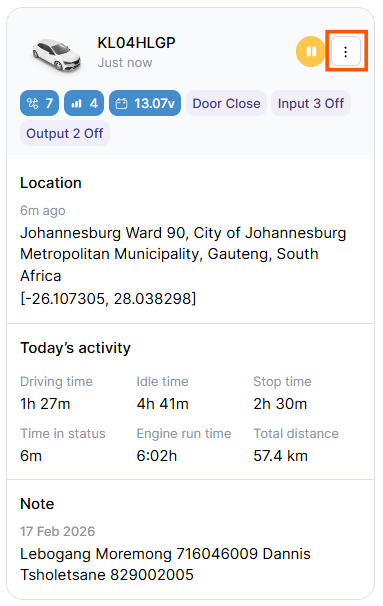
The overflow menu provides quick access to actions for the selected unit.
|
Action |
What it does |
|---|---|
|
Follow Unit |
Keeps the map focused on the selected unit as its location updates. |
|
Pin / Unpin |
Pins the unit card near the top of the unit list, or removes it from the pinned position. |
|
Hide on Map |
Hides the unit and its active trip trail from the current map view. |
|
Collapse / Expand Card |
Switches the unit card between a compact and detailed view. |
|
Find Closest Unit / Find Nearby |
Finds other units near the selected unit. |
Tip: The actions in the overflow menu apply only to the selected unit. This makes it easy to manage or focus on one unit without leaving the Tracking page.