.png?width=161&height=72&name=Logo%20light%20tr%20(1).png)
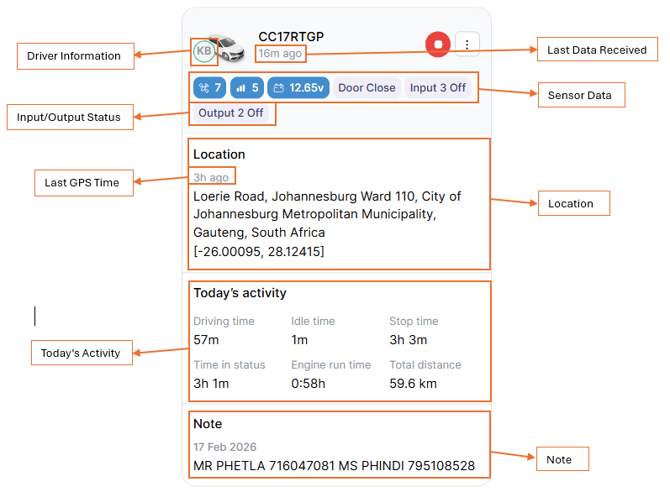
The information displayed on a unit card depends on the unit configuration, available data, and your Track Preferences.
|
Information |
Description |
|---|---|
|
Location |
Shows the unit’s last known location. This may include an address, POI, geofence, customer location, or coordinates. |
|
Last GPS time |
Shows when the unit last reported a GPS position. |
|
Last data received |
Shows how recently data was received from the unit, for example, Updated 1 minute ago. |
|
Driver information |
Shows the assigned or last known driver and driver image when available and enabled. |
|
Odometer and engine hours |
Shows available usage information for the unit. |
|
Sensor data |
Shows key sensor information available for the unit. |
|
Input/output status |
Shows the status of available inputs and outputs. Active inputs are easier to identify. |
|
Today’s activity |
Provides a summary of the unit’s activity for the current day when available. |
Interacting with a unit card
You can use the unit card to quickly access more information or manage units from the Track page.
- Select a unit: Select the unit card to open the secondary panel and view more information, such as telemetry, trips, and media where available.
- Pin a unit: Pin important units to keep them near the top of the unit list.
- Select multiple units: Select multiple units when you need to perform an action on several units.
- Manage selected units: Available actions can include adding units to a group, pinning them, hiding them from the map, or expanding and collapsing cards.
Tip: Not all unit cards show the same information. What you see depends on the unit configuration, available telemetry, and your Track Preferences.